A semi-tethered jailbreak is an interim solution which solves the problem of being unable to reboot with a tethered jailbreak. The semi tethered jailbreak by BigBoss will allow you to reboot on the road, but with limited functionality. It is enough that you are no longer stranded, and you can use your phone, text, and many other features. This is just until you get home and can use redsn0w again to “just boot tethered”. Once you do that, you’re back to fully functional state.
Step One
Jailbreak and boot your device tethered using the instructions below:
Create a folder on your desktop called Pwnage
Download RedSn0w 0.9.9b6 from here and place it in the Pwnage folder. Likewise, download the 5.0 firmware from here and place it in the Pwnage folder. (Note: you do not need to download the 5.0 firmware if you are already on iOS 5.0)
Extract the RedSn0w zip file by double clicking it.

Step Two: (You can skip this step if iOS 5 is already installed on your device) Connect your iPhone to the computer and launch iTunes.

Select your iPhone from the list of devices on the left. Now hold down Shift and click the Restore button. Restore is preferred as it won't create any wasted space on your iPhone.


Step Three
Launch the redsn0w application from the redsn0w folder we extracted earlier.

**Windows 7 users may want to try running the redsn0w executable mode as an administrator in Windows Vista compatibility. You can do this by right clicking the executable and selecting Properties from the contextual menu.
Step Four
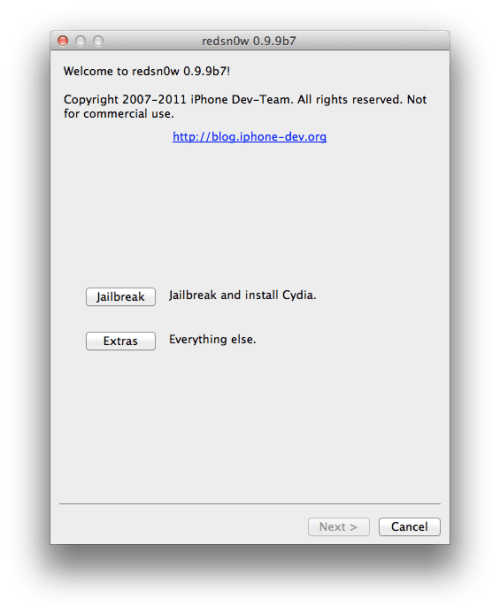
Once RedSn0w opens click the Jailbreak button

Step Five
Plug your iPhone into the computer and make sure its OFF then click the Next button

Step Six
RedSn0w will now guide you through the steps to get into DFU mode.
Hold down both the Home button and the Power button for 10 seconds.
Release the Power button and continue holding the Home button until RedSn0w detects the device.
Step Seven Your iPhone will now reboot
Step Nine
Select Cydia from the list of options and click Next.
Step Ten
Your iPhone will now be rebooted again and RedSn0w will begin uploading the new RAM Disk and Kernel.
Step Eleven
Once this is complete you will be notified that RedSn0w is done. When your iPhone finishes rebooting (5 minutes or so) it will be jailbroken with Cydia on the SpringBoard.
BOOT TETHERED
Once you have jailbroken you will need to rerun redsn0w to boot tethered.
Step One
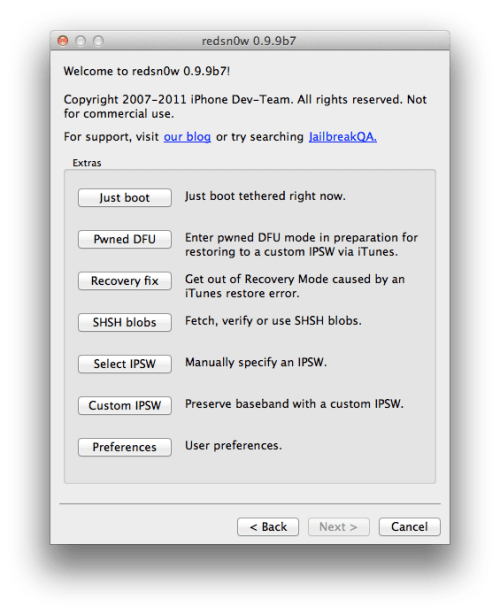
From the main RedSn0w menu click the Extras button.

Step Two
Select Just boot from the Extras menu to just boot tethered.

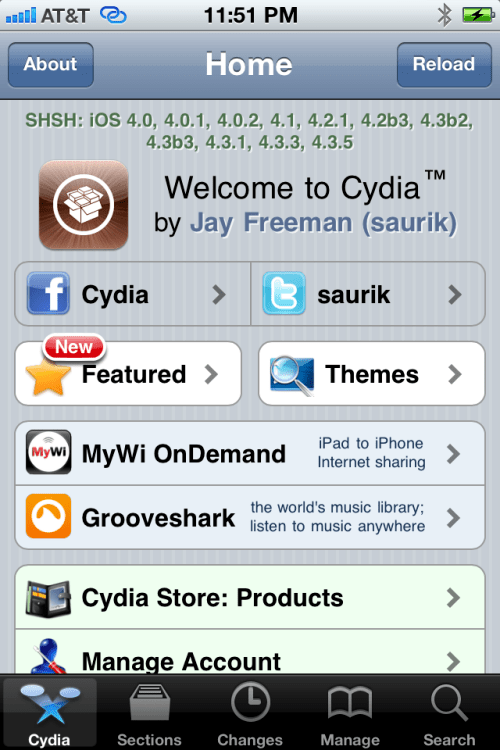
AFTER THAT LAUNCH CYDIA

Press to select Manage from the tabs at the bottom of the screen.
Step Four
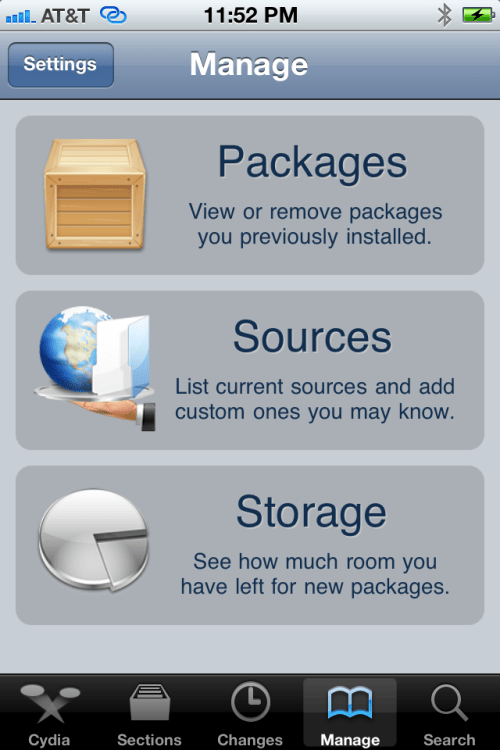
Press the large Sources button.
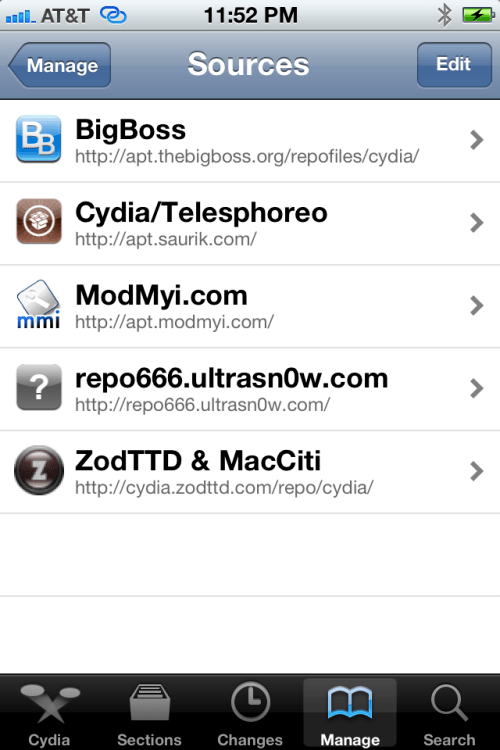
Press the Edit button at the top right of the screen.
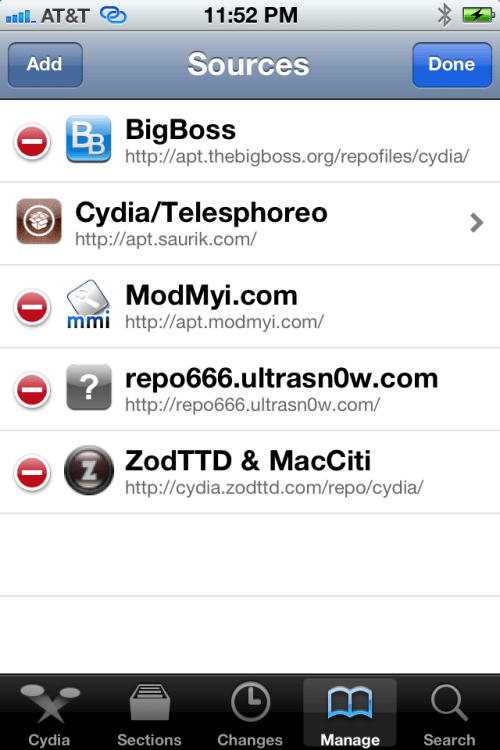
Step Six
Press the Add button at the top left of the screen.
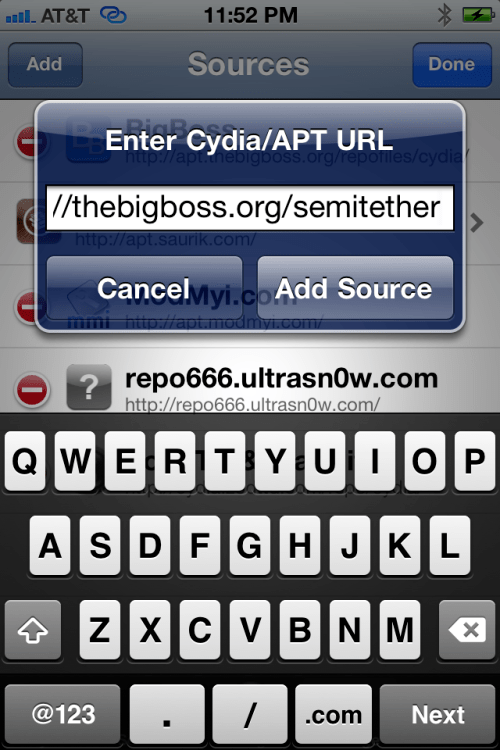
Input http://thebigboss.org/semitether into the text field and press the Add Source button.
Step Eight
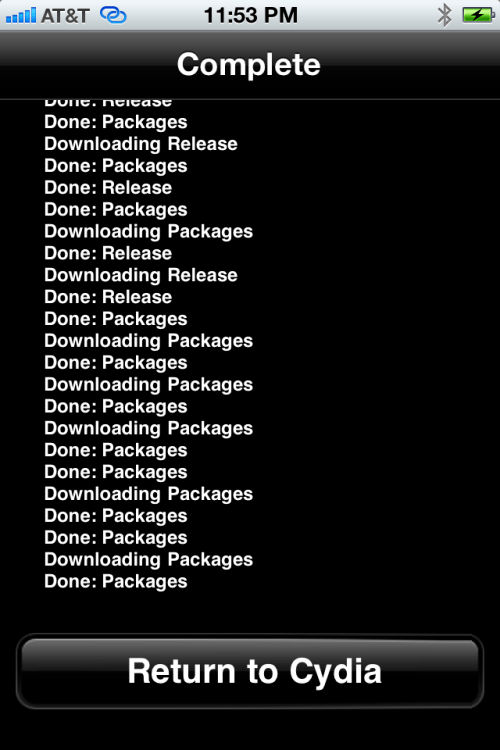
Press the large Return to Cydia button.
Step Nine
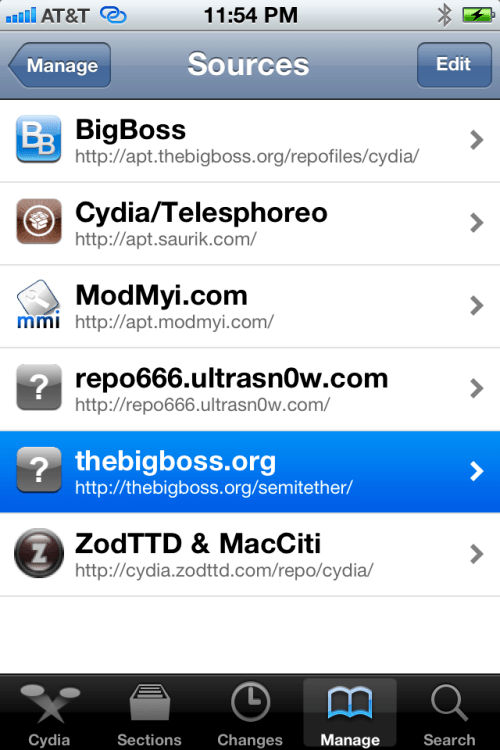
Select thebigboss.org from the list of Sources
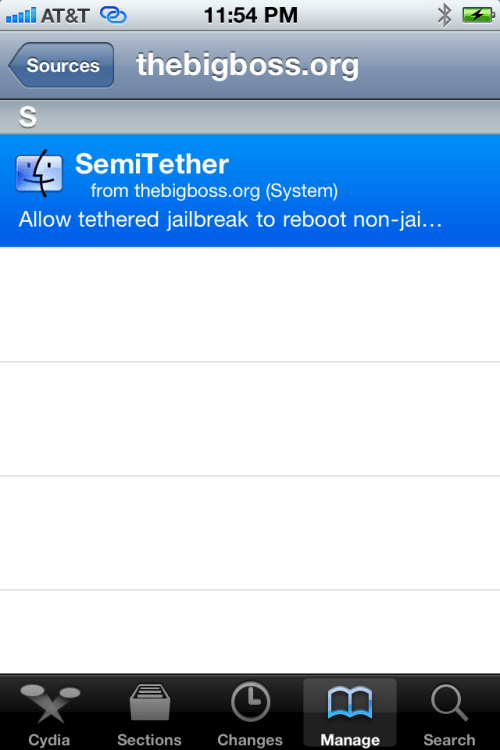
Select SemiTether from the list of Packages
Step Eleven
Press the Install button at the top right of the screen.
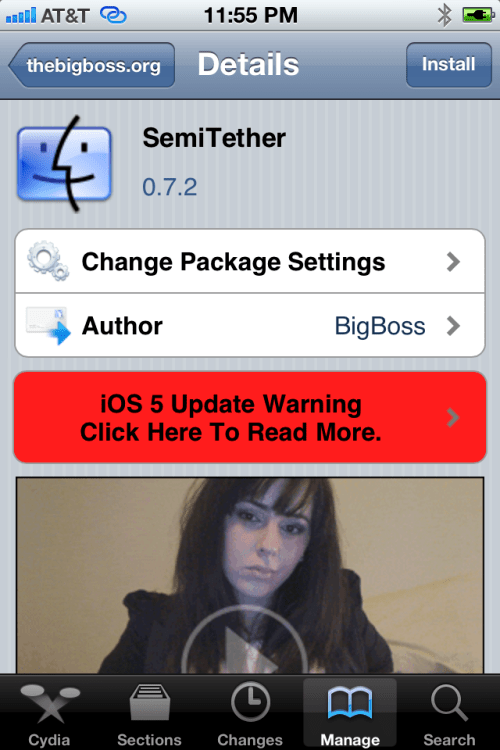
Step Twelve
Press the Confirm button to begin installation.
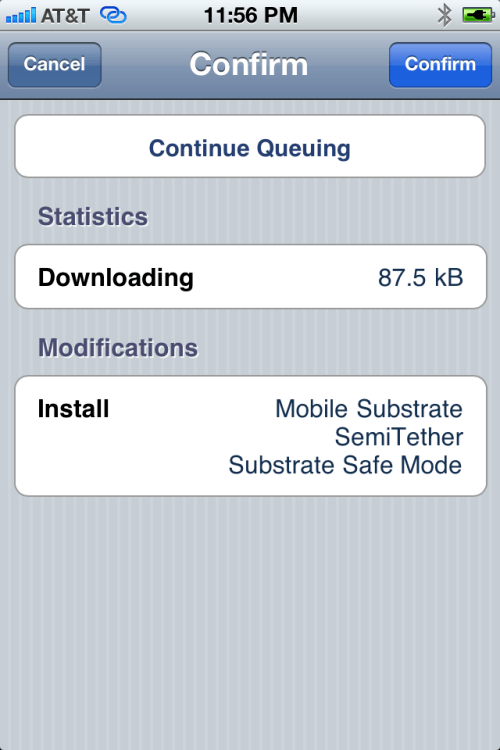
Press the large Reboot Device button.
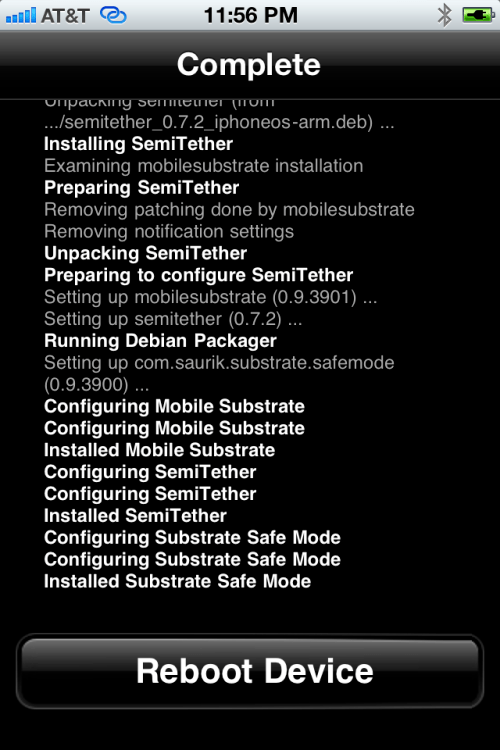
To get full functionality back you will need to boot tethered. Launch RedSn0w as you did in Step One then select Extras then Just boot from the menu.
**A big thanks to BigBoss and all those who made this tutorial possible.

